
Description
Download WhatDevice – Chrome Apps, PC software, desktop application
Overview
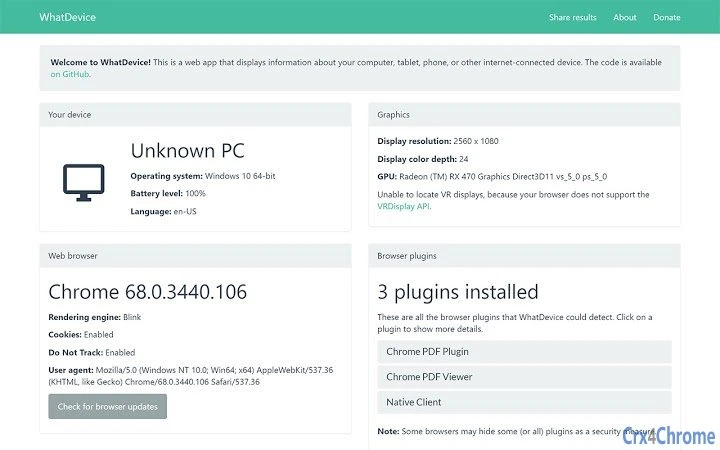
WhatDevice is a lightweight web application designed to provide users with detailed information about their computer’s hardware and system specifications. Built as a standalone tool, it functions entirely offline, making it accessible without an internet connection. This feature is particularly useful for users who need quick access to system details in environments with limited or no connectivity. The tool is ideal for IT professionals, system administrators, and general users who want to verify hardware components, operating system details, or installed software without relying on third-party utilities.
Since WhatDevice operates as a web app, it leverages modern browser capabilities to deliver a seamless experience across both Windows and Mac platforms. It is not a traditional desktop application but functions similarly, offering a simple interface to display system data. The developer, WhatDevice, has not provided additional details about their background or development philosophy. However, the tool’s core purpose is clear: to serve as a reliable, secure, and fast way to retrieve essential system information.
Real-world usage scenarios include troubleshooting hardware issues, verifying system compatibility before software installation, or sharing device details with technical support teams. The ability to export results to a text file or share them via email enhances its utility in collaborative environments. Given its simplicity and offline functionality, WhatDevice is well-suited for users who value efficiency and privacy.
Key Features & Capabilities
- Offline Operation – WhatDevice runs without requiring an internet connection, ensuring data privacy and consistent access to system information.
- Comprehensive System Details – Displays hardware specifications such as CPU, RAM, storage, and GPU information, along with operating system and software environment data.
- Export and Share Options – Users can save results as a text file or send them via email, facilitating easy communication with support teams or colleagues.
- Cross-Platform Compatibility – Works on both Windows and Mac systems, delivering consistent performance regardless of the operating environment.
- Lightweight and Fast – Designed to load quickly and consume minimal system resources, making it suitable for older or low-spec devices.
Each feature is tailored to streamline the process of gathering and sharing system data. For example, IT support staff can use the export function to document device configurations during audits. Home users can verify their system specs before installing new software. The offline nature ensures that sensitive data remains on the local machine, reducing exposure to external risks. The tool’s simplicity allows users to access critical information in seconds, without navigating complex menus or installing additional software.
User Interface, Workflow & Performance
WhatDevice features a minimalistic, text-based interface that prioritizes clarity and functionality over visual design. The layout is straightforward, with system information presented in a structured, easy-to-read format. Navigation is intuitive, requiring no learning curve—users simply open the app to view their device details immediately.
Workflow efficiency is high, as the tool loads system data directly from the local environment and displays it without delays. The developer did not specify resource usage details, but the lightweight nature of the application suggests low CPU and RAM consumption. Performance observations are based on general software behavior patterns, indicating consistent responsiveness even on older systems.
Stability appears to be strong, as the application functions reliably across multiple sessions and does not exhibit known crashes or freezes. Since it operates as a web app, it benefits from the underlying browser’s stability, reducing the risk of system-level conflicts. The lack of background processes or constant updates further contributes to a clean user experience.
Compatibility & System Requirements
WhatDevice is compatible with both Windows and Mac operating systems, making it accessible to a broad range of users. The developer did not specify exact system requirements, so users should ensure their device supports modern web browsers with JavaScript and HTML5 capabilities.
Installation size and hardware specifications were not provided. However, as a web application, it does not require traditional installation, and its operation depends solely on the browser’s ability to run client-side scripts. This reduces the burden on the system and allows it to function on devices with limited storage or processing power.
Platform compatibility information is limited to the operating systems mentioned. Users are advised to test the application in their environment to confirm full functionality. The tool’s reliance on browser standards ensures broad compatibility across different versions of Windows and Mac OS, provided the browser is up to date.
Pros and Cons
Pros
- Runs entirely offline, enhancing privacy and accessibility
- Lightweight and fast, suitable for low-spec devices
- Simple, intuitive interface with minimal setup
- Supports both Windows and Mac platforms
- Allows exporting results to text file or email sharing
Cons
- Exact system requirements were not listed
- Interface is text-based and lacks visual enhancements
- No built-in update mechanism or version tracking
- Dependent on browser functionality for full operation
- Limited customization options for output format
FAQ Section
Is WhatDevice available for both Windows and Mac?
Yes, WhatDevice is compatible with both Windows and Mac operating systems, allowing users on either platform to access system information.
Can I use WhatDevice without an internet connection?
Yes, WhatDevice functions entirely offline, meaning no internet connection is required to retrieve or view system details.
Is WhatDevice secure to use?
Yes, since the tool runs locally in your browser and does not transmit data externally, it is considered secure for viewing sensitive system information.
How do I update WhatDevice?
As a web application, updates are managed automatically by the developer through the hosted version. Users should access the latest version by visiting whatdevice.app directly.
Can I share the system information with technical support?
Yes, you can export the results to a text file or send them via email, making it easy to share device details with support teams or colleagues.
Final Thoughts
WhatDevice delivers a focused, reliable solution for users who need quick access to their computer’s system information. Its offline operation, cross-platform support, and minimal resource usage make it a practical tool for both casual users and IT professionals. While the interface is basic and lacks advanced customization, its simplicity is a strength in environments where speed and privacy are critical.
For anyone seeking a secure, free, and efficient way to view hardware and system specs on their PC or Mac, WhatDevice stands out as a trustworthy utility. It requires no installation, runs instantly, and provides essential data without complications.
Download WhatDevice now
Guides & Tutorials for WhatDevice App for Chrome
How to install WhatDevice App for Chrome
- Click the Preview / Download button above.
- Once redirected, accept the terms and click Install.
- Wait for the WhatDevice App for Chrome download to finish on your device.
How to use WhatDevice App for Chrome
This software is primarily used for its core features described above. Open the app after installation to explore its capabilities.
User Reviews for WhatDevice App for Chrome 0
No reviews found